Create a test geofence and read its activity
Practice geometry, Blueprint delivery and event interpretation with a controlled company-device test.
Create a small test boundary, verify that it applies to the intended company device, and inspect the event evidence from an approved movement test. Your task is to distinguish a saved circle, effective coverage, report-based occupancy, recorded activity and notification delivery.
Narration uses an AI-generated stock neural voice. The walkthrough uses illustrative company records, not a live customer tenant.
Prepare the exercise
Choose an approved test site with safe, clearly separated inside and outside positions. Use a company device whose ownership, enrollment, reporting capability and available actions have been checked. Identify the Blueprint used for the V2 assignment workflow and inspect its actual target population.
Agree who coordinates movement and who reviews the product. If the exercise includes notifications, name an authorized recipient and an approved channel to verify delivery. Do not broaden location access or collection just to complete the lesson.
Record the test device, previous configuration, baseline position time/time zone and accuracy. Add the intended fence name, center, radius, assignment and entry/exit direction. Keep these values stable during the first test.
Step 1: place and size
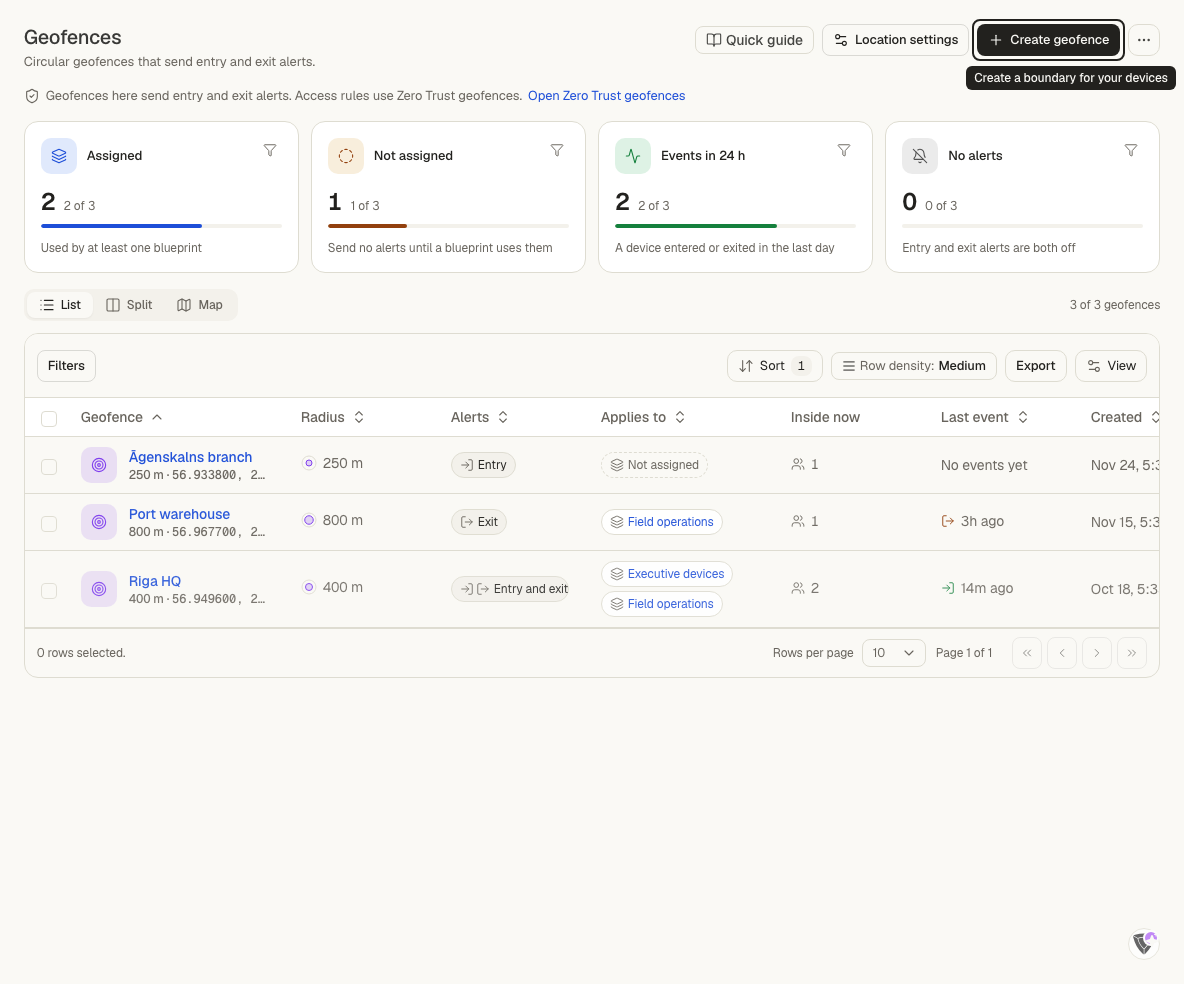
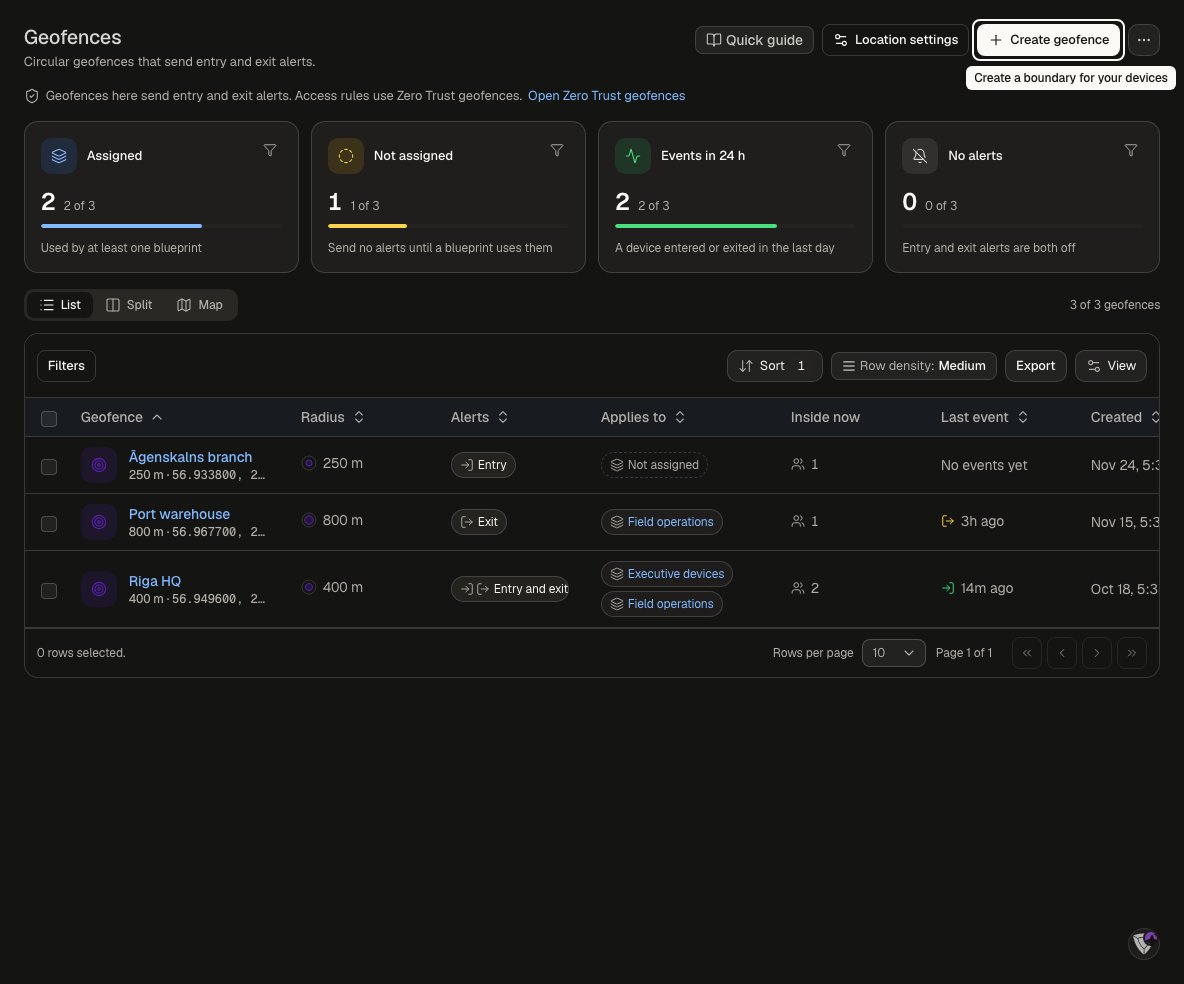
- Open Geolocation → Geofences and select Create geofence.
- In Place and size, use the available site search or map controls to establish the center. Inspect the coordinates rather than relying only on a familiar place name.
- Enter a descriptive name and a Radius (meters) accepted by the form. Read any validation message before proceeding.
- Review the circle against the two test positions and the device's reporting accuracy.
- Choose the entry and exit preferences required for this exercise.
Use my location refers to the administrator's browser location. It is not Locate now for the managed device. Use the intended test site instead of assuming that your browser's location is appropriate.
A valid numeric radius does not prove that the circle is correctly placed or that it follows the exact physical warehouse perimeter.
Step 2: assign and review
In Assign, select the approved Blueprint and inspect its reach and availability explanations. A Partly off indicator can mean that the selected population includes a platform whose tracking is off. The reach summary is not the number of devices proven to be reporting.
In Review, inspect the name, center, radius, alert choices and Applies to summary together. Return to the relevant step if something is wrong. Create the boundary, reopen its detail, and inspect Assignment and the linked Blueprint to verify the retained configuration and effective coverage.
If the boundary is Not assigned, resolve that condition before calling the movement an end-to-end event test. Do not substitute a device-group label for the actual Blueprint delivery check.
Step 3: record movement and inspect activity
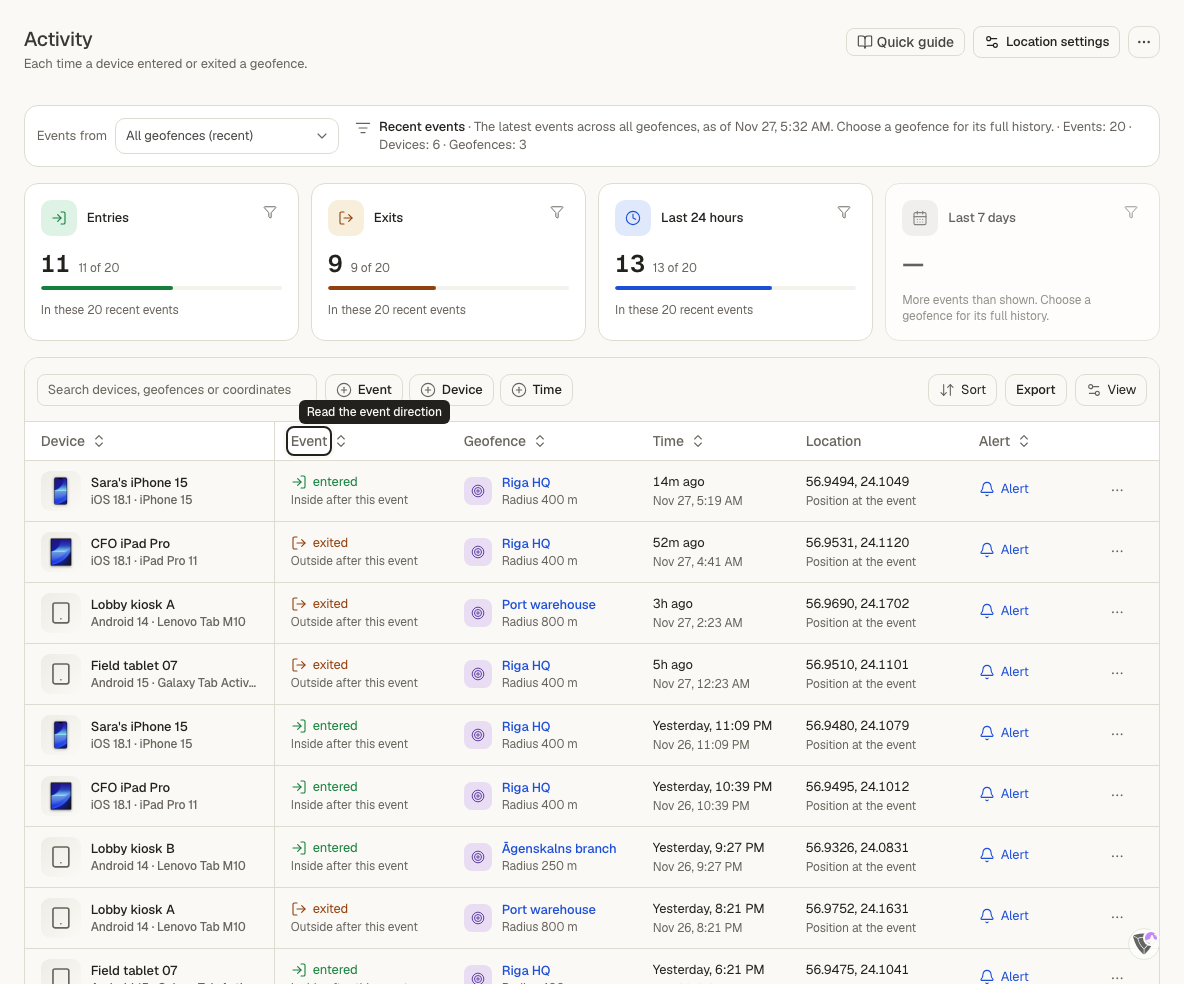
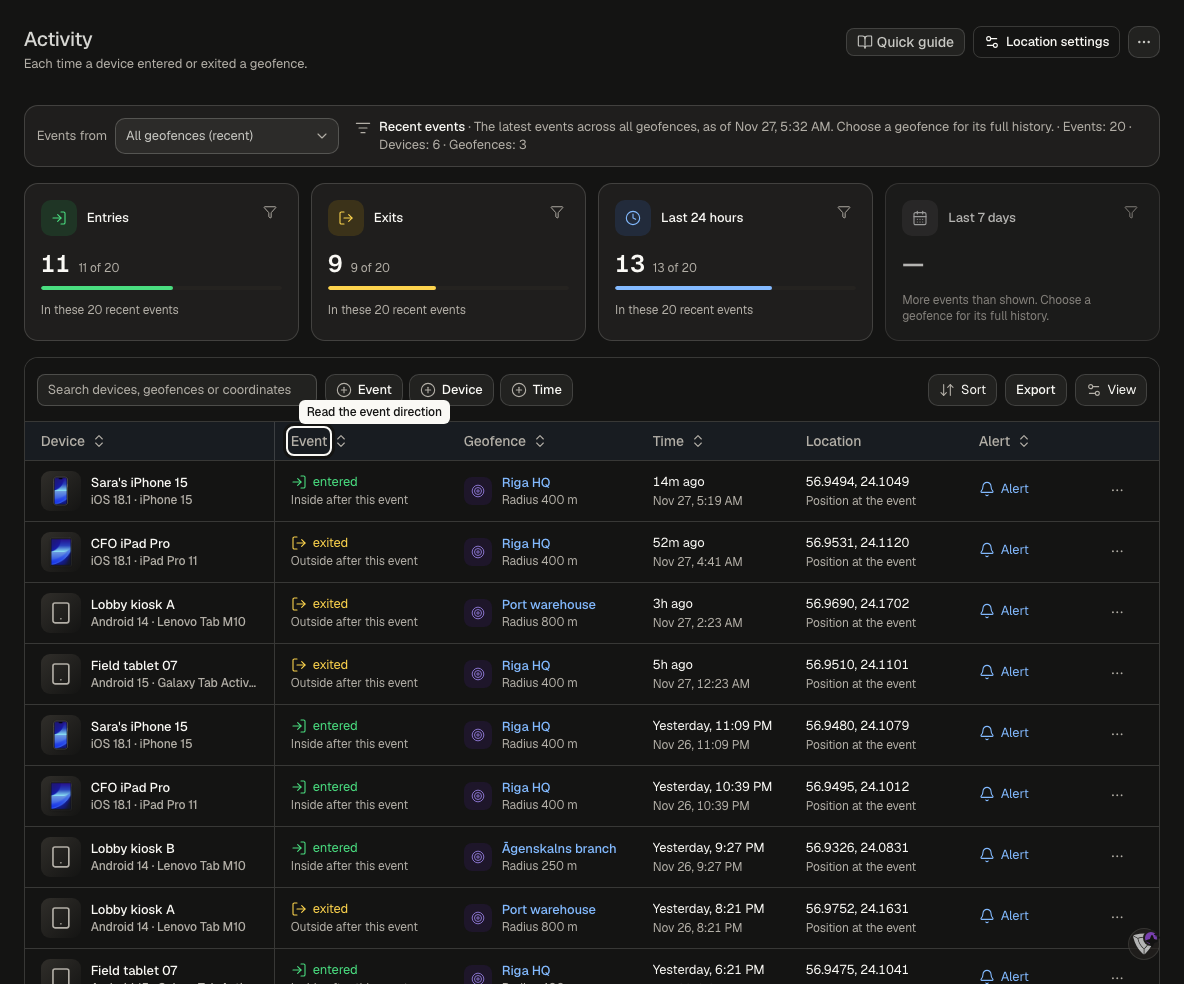
Check the device's baseline position and coordinate the approved crossing safely. Record the actual movement time. Afterward, inspect the relevant reporting and event evidence without replacing a missing result with another device's or another fence's event.
Open Activity or the selected fence's Events. Match the device, fence, event direction, event time and position. Compare absolute times in the same time zone. The latest device position can differ from the position associated with an earlier event.
Use Inside now, by last report to understand membership derived from available positions. It is not an event count or proof of current physical presence. A device without a usable fix is not automatically an observed outside device.
If you issue a permitted location request, read acceptance or answer, available receipt evidence and the recorded position separately. Nearby repeated reports can be combined without a new history row, so an unchanged position time alone does not establish failure.
Step 4: investigate the branch you observed
- No useful report: check capability, effective tracking and connectivity before interpreting boundary results.
- No event: check assignment, device identity, starting/ending observations and accuracy before editing the circle.
- Unexpected direction or time: check the selected event and the configuration relevant to that observation.
- Event without confirmed notification: inspect global Geofence alerts, fence preferences and the actual delivery channel separately.
- Map unavailable: use readable coordinates and lists while isolating the rendering issue; do not label a blank map as missing telemetry.
Completion questions and cleanup
Which check proves the saved boundary and assignment? What distinguishes occupancy from a crossing event? What evidence establishes the expected event, and what separately establishes delivery? Which observations remain unknown?
Complete the exercise with a test sheet containing those answers and an owner for unresolved work. A truthful diagnostic outcome completes the learning exercise; it does not establish a successful production event or notification test. Retain or clean up the boundary under the environment procedure, restore temporary settings, and verify the resulting configuration. Geolocation activity does not itself prove that a Zero Trust access policy allowed or blocked a session.